HOW TO RUN AI MODELS LOCALLY ON A PS5 — STEP-BY-STEP GUIDE USING PS5LM
The PlayStation 5 is designed for gaming, but developers have found another use for its powerful hardware: running artificial intelligence models locally.
Through open-source projects called PS5LM and PS5LM Plus, owners of compatible jailbroken PS5 consoles can run large language models (LLMs) directly on the console.
This means a PS5 can answer questions, generate text, help with programming and even serve as a private AI server for other devices on the same network.
Unlike cloud-based AI services, these models perform their calculations on the PS5 itself.
The technology is built around llama.cpp, an open-source AI inference engine, and Vulkan, which allows the software to use the PS5's AMD GPU.
WHAT IS PS5LM?
PS5LM is an open-source project that brings local AI inference to jailbroken PlayStation 5 consoles.
It allows users to load compatible GGUF models and run them using the console's hardware.
GGUF is a file format commonly used for running AI models locally. Models are often compressed using a technique called quantization, reducing the memory required to run them.
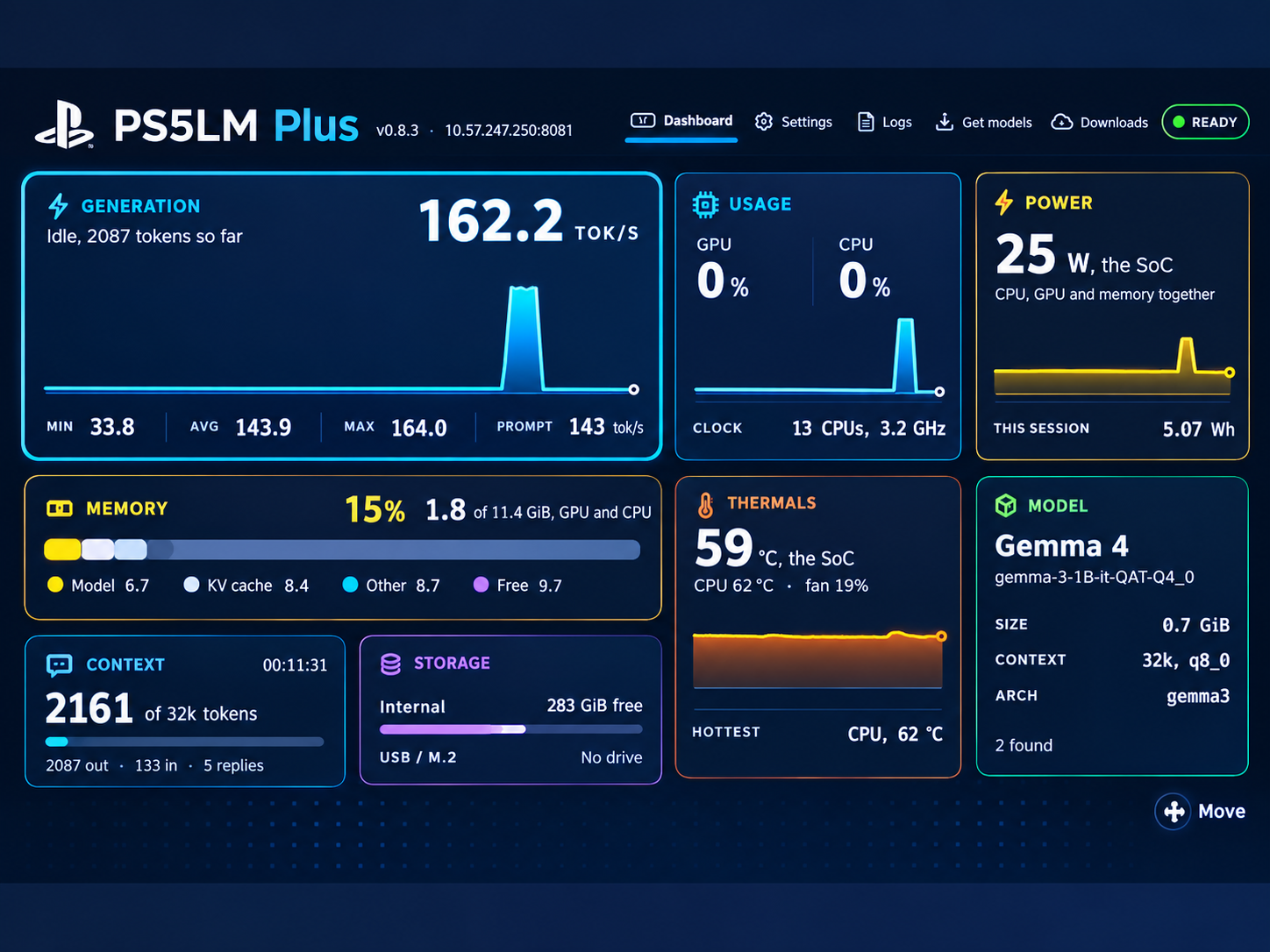
PS5LM Plus is a related project that provides a native PS5 application with a dashboard, model management, downloads, performance monitoring and a web interface.
The projects make it possible to use the PS5 as a local AI computer without installing a full Linux operating system.
WHAT DO YOU NEED?
Before starting, you need:
1. A PlayStation 5 running compatible firmware.
2. An existing working jailbreak.
3. A computer for transferring files.
4. A USB drive or network connection.
5. Sufficient storage space for AI models.
6. The required PS5 homebrew payloads.
7. A compatible GGUF language model.
The current project documentation lists support for jailbroken PS5 consoles running firmware 7.00 through 13.60.
However, firmware support depends on the available jailbreak and homebrew environment. A firmware number alone does not guarantee that every required component will work.
This guide assumes your console is already jailbroken.
STEP 1: PREPARE YOUR JAILBROKEN PS5
Start your PS5 and activate your existing jailbreak
Before opening PS5LM, ensure that the required homebrew components are running.
These include:
- kstuff-lite: Provides kernel patches needed by supported homebrew applications.
- etaHEN: Provides additional homebrew functionality.
- ShadowMountPlus: Makes supported homebrew applications available on the PS5 home screen.
Two additional tools are useful:
- elfldr: An ELF payload loader commonly listening on port 9021.
- ftpsrv: An FTP server commonly listening on port 2121.
The exact method of loading these components depends on your jailbreak setup.
Do not assume that a console is ready simply because an exploit has executed successfully.
STEP 2: DOWNLOAD PS5LM OR PS5LM PLUS
Visit the official project repositories:
PS5LM:
https://github.com/cobanov/PS5LM
PS5LM Plus:
https://github.com/abhi245y/PS5LM-Plus
Open the Releases section and download the latest compatible application package.
For this guide, we will use PS5LM Plus.
Download the application ZIP file and extract it on your computer.
The PS5LM Plus application folder is named:
PPSA99581
If you use the original PS5LM project instead, its application folder is named PPSA99575.
These folders are different, so make sure you follow the instructions for the version you downloaded.
STEP 3: CONNECT YOUR COMPUTER TO THE PS5
Connect your computer and PS5 to the same local network.
Launch your FTP server payload on the PS5.
Find the console's local IP address in its network settings.
On your computer, open an FTP client such as FileZilla.
Enter the PS5's IP address and the FTP port used by your server, commonly 2121.
Connect to the console.
The FTP service may not require a username or password, depending on the payload and configuration.
Only use this service on a trusted local network.
STEP 4: INSTALL THE APPLICATION
After connecting through FTP, navigate to:
/data/homebrew/
Copy the extracted PPSA99581 folder into this directory.
The final location should be:
/data/homebrew/PPSA99581
Wait until the transfer finishes.
With ShadowMountPlus active, the PS5LM Plus application should become available on the PS5 home screen.
If it does not appear, check that the required homebrew components are loaded and that the application folder was copied correctly.
STEP 5: DOWNLOAD AN AI MODEL
Launch PS5LM Plus from the PS5 home screen.
Open the model management section.
The application supports downloading GGUF models and can also load models copied manually.
For beginners, starting with a smaller model is recommended.
Examples include:
- Llama 3.2 3B Instruct
- Gemma 4 E4B
- Qwen 3.5 9B
Smaller models generally require less memory and can generate responses faster.
Larger models may provide stronger reasoning capabilities but need more memory and can run more slowly.
Model compatibility also depends on the GGUF format, quantization and the version of llama.cpp used by the application.
STEP 6: INSTALL MODELS MANUALLY
If you already have a GGUF model downloaded on your computer, you can transfer it to the PS5.
Copy the model file into:
/data/PS5LM/models/
You can also place models on a compatible USB drive.
For USB storage, create the following folder:
PS5LM/models
Copy your GGUF files into that folder.
PS5LM Plus can discover supported models on internal storage, compatible USB drives and M.2 storage.
Using USB storage can be convenient because large model files do not need to occupy the PS5's internal storage.
STEP 7: LOAD YOUR MODEL
Return to PS5LM Plus and open the model library.
Select the model you want to run.
The application checks available memory and estimates whether the model can fit.
Load the model and wait for initialization to complete.
Once the application reports that the model is ready, you can begin sending prompts.
For models that support image understanding, additional files such as an image projector may be required.
STEP 8: START CHATTING WITH YOUR PS5
PS5LM Plus includes an interface for interacting with the loaded model.
You can enter questions and receive generated responses directly through the console.
For example, try asking:
"Explain how artificial intelligence works in simple English."
You can also ask the model to write code, explain technical concepts or summarize text.
The quality of the responses depends on the model you selected.
STEP 9: ACCESS YOUR PS5 AI FROM A PHONE OR COMPUTER
One of the most useful features of PS5LM is its ability to act as a local AI server.
Once a model is running, open a browser on another device connected to the same network.
Enter:
http://YOURPS5IP:8081
Replace YOURPS5IP with the actual local IP address of your console.
For example:
http://192.168.1.100:8081
You should see the AI chat interface.
You can now send questions from your phone or computer while the PS5 performs the AI calculations.
The application also provides APIs compatible with common AI development tools.
This allows developers to connect supported applications and coding assistants to models running on the console.
STEP 10: TEST THE PERFORMANCE
After loading a model, try different prompts and observe its performance.
Important measurements include:
- Tokens per second: How quickly the model generates text.
- Memory usage: How much memory the model requires.
- Context length: How much information the model can process in a conversation.
- Temperature: How hot the console becomes during operation.
- Power consumption: How much electricity the system uses.
The PS5LM Plus dashboard provides several of these measurements.
The developers have reported approximately 61 tokens per second using Gemma 4 E4B and around 20 tokens per second using a heavily quantized Qwen 3.8 27B model.
These are project-reported results, not guaranteed speeds for every PS5.
Performance depends on the model, quantization, context length and software configuration.
CAN A PS5 REALLY RUN LARGE AI MODELS?
Yes, but there are limitations.
The PS5 has 16GB of shared GDDR6 memory, but not all of that memory is available to AI applications.
The projects use a Vulkan backend to access the console's AMD GPU.
This is important because running large models on the PS5's CPU alone can be extremely slow.
Developers have demonstrated that GPU acceleration makes local AI inference practical on supported consoles.
However, the PS5 is not a replacement for a dedicated AI workstation.
Very large models may not fit in available memory, and the console's software environment remains experimental.
DO YOU NEED LINUX?
No.
PS5LM and PS5LM Plus run as native homebrew applications on compatible jailbroken PS5 consoles.
Installing Linux is another experimental option, but it is not required for this guide.
IS AN INTERNET CONNECTION REQUIRED?
An internet connection may be needed to download the application and AI models.
However, once the application and model files are installed, local inference does not require a cloud AI service.
Other devices can connect to the PS5 over a local network.
This makes the technology useful for experimenting with private AI systems.
SECURITY AND IMPORTANT LIMITATIONS
PS5LM is experimental homebrew software.
Users should understand that:
- A working jailbreak is required.
- Firmware compatibility varies.
- Some models may fail to load.
- Large models may cause memory problems.
- Applications may crash or require restarting.
- Homebrew payloads can introduce security risks.
- Running an AI server without authentication can expose it to other devices on the network.
Only download releases from trusted project sources.
Do not expose the PS5's AI server or FTP service directly to the public internet.
Users should also be aware that modifying their console may affect warranty coverage, stability and access to online services.
WHY THIS MATTERS
The PS5 was designed primarily as a gaming console, but projects such as PS5LM show that its hardware can also support useful AI workloads.
For developers, students and technology enthusiasts, this creates an opportunity to experiment with local AI without buying a dedicated AI server.
It also demonstrates the growing importance of open-source AI software and GPU computing.
A compatible jailbroken PS5 can now serve as a local AI assistant, a model-testing platform or an AI server for devices on a home network.
The technology is still experimental, but it shows how gaming hardware can be adapted for applications far beyond gaming.
OFFICIAL PROJECT SOURCES
PS5LM:
https://github.com/cobanov/PS5LM
PS5LM Plus:
https://github.com/abhi245y/PS5LM-Plus
llama.cpp:
https://github.com/ggml-org/llama.cpp